Appearance
https://jasmine880809.medium.com/2023-%E6%8E%A8%E8%96%A6-10-%E5%80%8B-vscode-extension-%E6%8F%90%E5%8D%87%E9%96%8B%E7%99%BC%E6%95%88%E7%8E%87-%E4%B8%80%E7%A7%92%E5%AF%AB%E6%95%B8%E8%A1%8C%E7%A8%8B%E5%BC%8F%E7%A2%BC-1e2a2788a438https://thisweb.dev/post/five-vscode-extensionshttps://ithelp.ithome.com.tw/articles/10267030https://github.com/Lin-jun-xiang/awesome-vscode-extensions/blob/main/README.zh-TW.mdhttps://blog.csdn.net/gitblog_01064/article/details/152647268
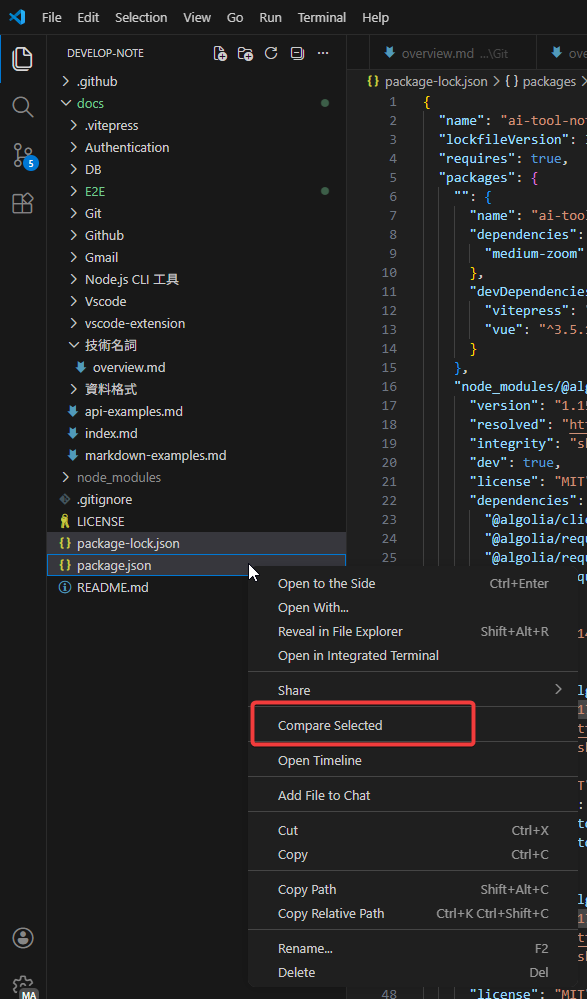
比較兩檔案差異
開發體驗
程式碼超過螢幕自動換行
快速開 / 關 👉 Alt + Z
永久開啟 Editor: Word Wrap 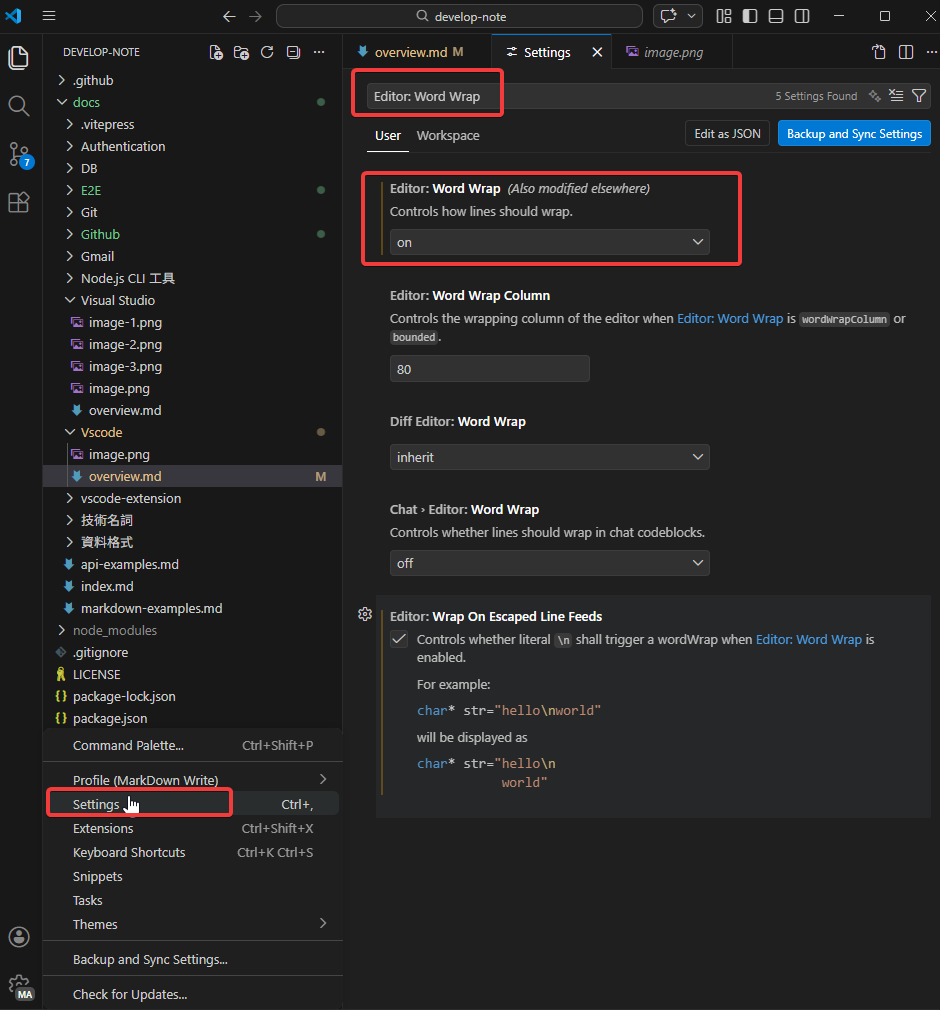
Tab 顯示多行
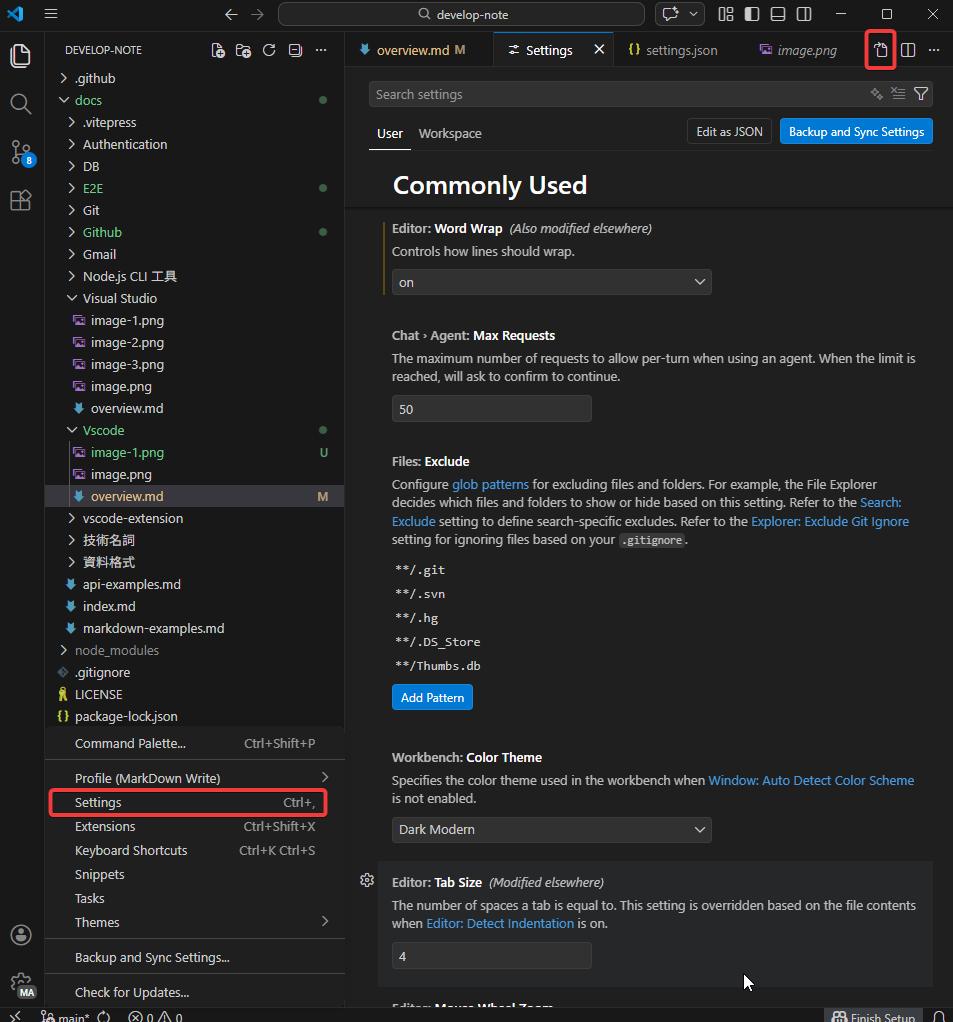
settings.json 加入:
json
"workbench.editor.wrapTabs": true上下文相關管理
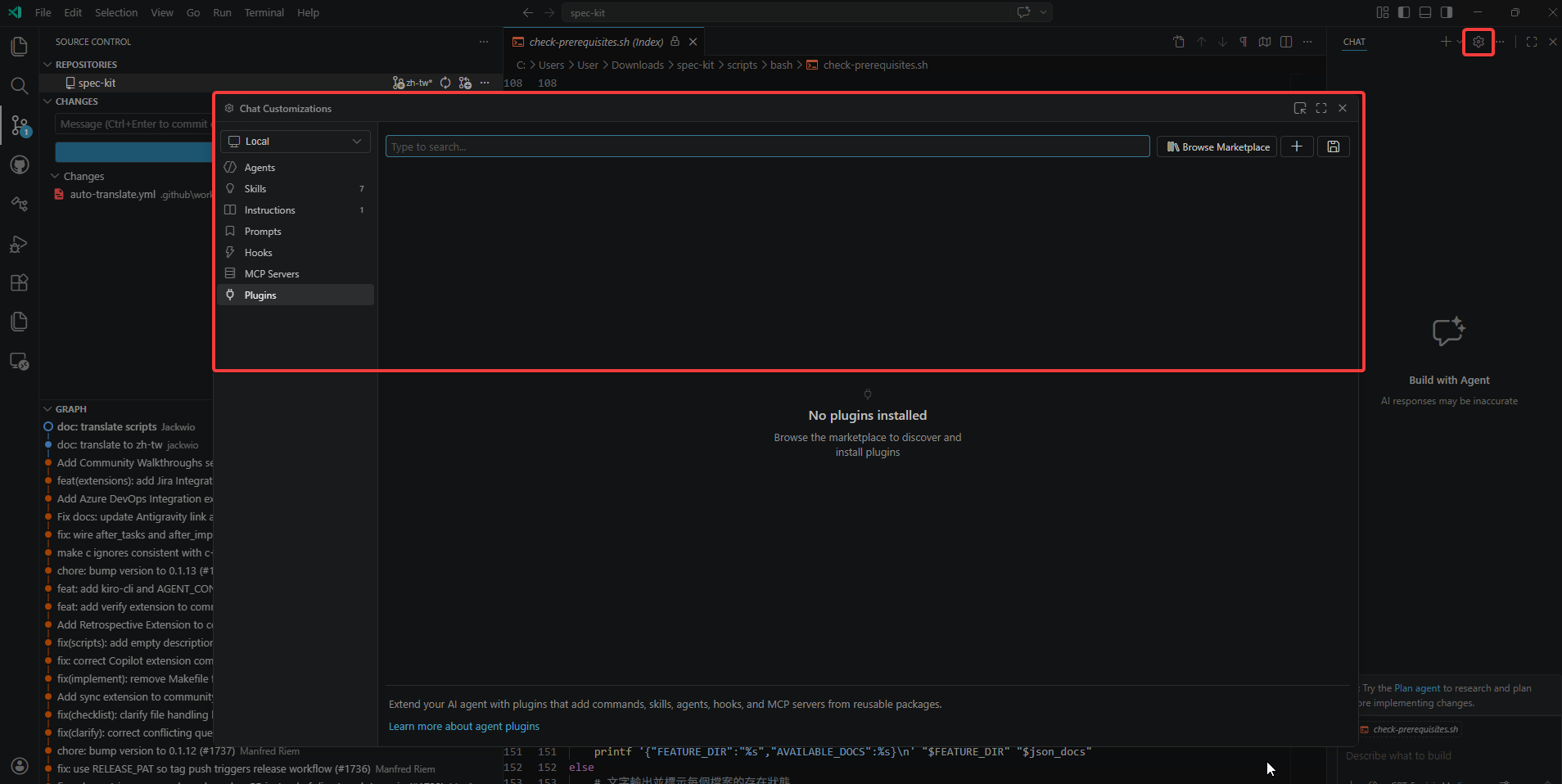
C# 專案啟動配置
透過 launch.json
如何在 VS Code 搞定 .NET 主控台應用程式含執行參數的偵錯設定 | The Will Will Web
launch.json
json
{
    // Use IntelliSense to learn about possible attributes.
    // Hover to view descriptions of existing attributes.
    // For more information, visit: https://go.microsoft.com/fwlink/?linkid=830387
    "version": "0.2.0",
    "configurations": [
        {
            "name": "Duende",
            "type": "dotnet",
            "request": "launch",
            "projectPath": "${workspaceFolder}/src/Aguacongas.TheIdServer.Duende/Aguacongas.TheIdServer.Duende.csproj",
        },
        {
            "name": "BlazorApp",
            "type": "dotnet",
            "request": "launch",
            "projectPath": "${workspaceFolder}/src/Aguacongas.TheIdServer.BlazorApp/Aguacongas.TheIdServer.BlazorApp.csproj",
        }
    ],
    "compounds": [
        {
            "name": "All Services",
            "configurations": [
                "Duende",
                "BlazorApp"
            ]
        }
    ]
}
快捷鍵基本使用
查看某 class 的所有屬性方法
✅ 方法一:Outline(大綱視圖)【最推薦】 最直覺、最快 使用方式 1. 打開包含該 class 的檔案 2. 左側 Explorer → Outline ○ 若沒看到:Ctrl + Shift + P → 搜尋 Outline 能看到什麼 • 類別(Class) • 屬性(Properties)
• 方法(Methods)
• 欄位(Fields)
• 建構子(Constructors)
👉 點一下就會跳到定義 📌 小技巧 • Outline 右上角可切換: ○ Sort by Name ○ Sort by Position • 支援巢狀 class
✅ 方法二:Go to Symbol in File(快速列表) 適合快速搜尋 快捷鍵 Ctrl + Shift + O 功能 • 顯示此檔案所有: ○ method ○ property ○ field • 可直接輸入關鍵字過濾 📌 例如: get save Init
✅ 方法五:C# 專用(Roslyn / OmniSharp) 如果你用的是 C# 額外功能 • 自動分類: ○ public / private ○ property / method • 顯示 XML Doc • 支援 partial class(非常重要) 📌 若你發現 Outline 看不完整,通常是: • OmniSharp 沒啟動 • 專案沒正確載入 .sln
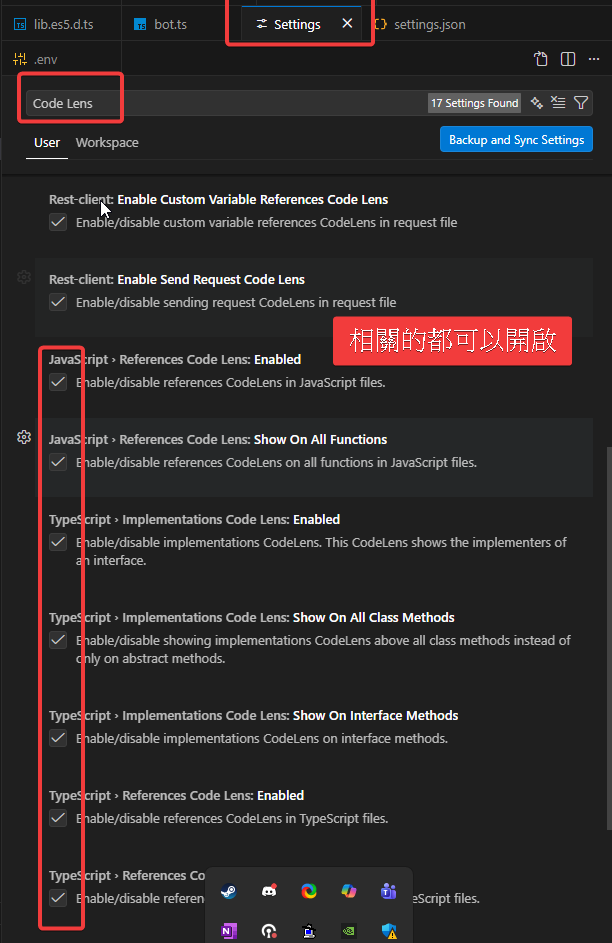
✅ 方法六:CodeLens(在 class 上方顯示資訊) 進階但很有用 功能 • 顯示: ○ References 數量 ○ Implementations ○ Derived classes 啟用方式 Settings: Editor › Code Lens
C# Snippets
一、C# Snippets 是什麼? C# Snippets 是 VS Code 的 程式碼片段(Code Snippet)擴充或內建功能,讓你輸入一個關鍵字後: 👉 按 Tab 👉 自動展開成一整段 C# 程式碼
✅ 有 Snippets 輸入: ctor 按 Tab → 自動產生建構子 輸入: prop 按 Tab → 自動產生屬性 👉 省時間 + 少錯字 + 結構一致
三、常用 C# Snippets(實戰取向) 🔹 類別 / 結構 Snippet 產生內容 class class 樣板 interface interface struct struct enum enum ctor 建構子 record record 類型
🔹 方法 / 非同步(你一定常用) Snippet 用途 prop 自動屬性 propfull 含 backing field method 方法樣板 async async method task Task 回傳
🔹 流程控制 Snippet 產生 if if ifelse if / else for for loop foreach foreach switch switch
🔹 常用語法糖 Snippet 說明 try try-catch using using block lock lock region #region
四、在你常用的 .NET / ABP 情境 🧩 Application Service(ABP) async public async Task MethodNameAsync() {
}
👉 寫 Application Service 速度直接翻倍。
🧩 Controller / Minimal API ctor 快速產生 DI 建構子: public UsersController(IUserAppService userAppService) { _userAppService = userAppService; }
五、C# Snippets vs IntelliSense 差異 項目 C# Snippets IntelliSense 目的 快速產生程式碼 型別 / API 提示 觸發 輸入關鍵字 + Tab 輸入時自動 是否可客製 ✅ 非常容易 ❌ 是否可共用 ✅(JSON) ❌ 👉 Snippets 是「寫程式碼骨架」 IntelliSense 是「填內容」